How do I start trading on MT5 mobile for Android?
Short answer: Connect the MT5 Android app to your trading account using the correct server, account number, and master password. In Quotes, tap an instrument, select New order, enter your volume and stop levels, and submit a Buy or Sell order. Manage the position from Trade and review completed transactions in History.
Install MT5 and connect your account
Use the Android download link on the NordFX MetaTrader 5 page to get the mobile application.
Have your MT5 trading account number, master password, and server name ready. These are trading account credentials, rather than simply your Personal Area login.
Log in to an existing account
- Open the app’s side menu and go to the account management screen.
- Tap the add-account button at the top.
- Search for NordFX and select the appropriate broker/server entry.
- In Use Existing Account, enter your account number and master password.
- Check the server against your account details, then tap Login.
An investor password lets you view the account but does not permit trading.
Check that the intended account appears as active. This matters if you have both demo and live accounts saved. For additional setup guidance, see how to connect a NordFX account to MT5.
Find your instrument in Quotes
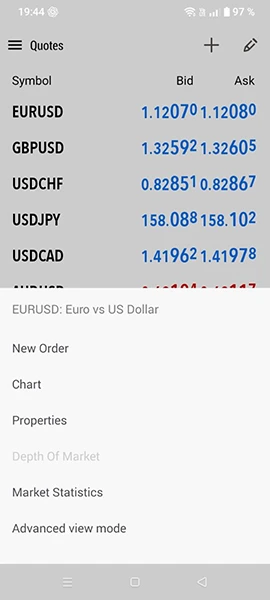
Open Quotes, where the app displays instrument prices.
To add an instrument, tap the plus button at the top, search for its symbol, and tap the matching result. Return to Quotes and check that it appears.
Tap the instrument and choose Properties to review its contract size, permitted volume, volume step, and trading sessions. Do not assume that the same lot size represents the same exposure across different markets.
Open the chart and select a timeframe
In Quotes, tap the instrument and select Chart.
Tap the current timeframe in the chart’s top panel and select an interval. For example, M15 represents 15 minutes per candle, while H1 represents one hour.
Drag horizontally to review earlier prices. Spread two fingers apart to zoom in, or pinch them together to zoom out. Check the displayed symbol and timeframe before analysing the chart.
The timeframe should match your analysis. NordFX’s guide to choosing a timeframe for intraday trading explains the different perspectives shorter and longer intervals provide.
Open a market trade
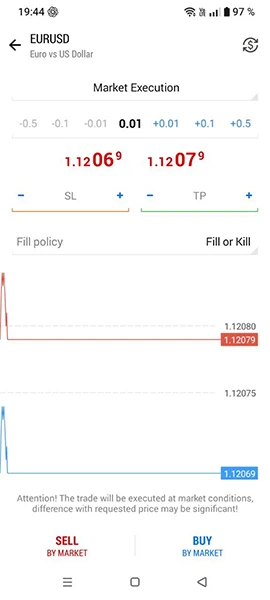
Enter the order details
For a straightforward entry workflow, return to Quotes, tap the instrument, and select New order.
- Confirm the symbol.
- Keep the execution type for an immediate market transaction rather than selecting a pending order.
- Enter Volume in lots.
- Enter Stop Loss and Take Profit as price levels in this standard order window.
- Review everything before submitting.
Under Market Execution, tap Buy by market or Sell by market. Other execution modes can show different controls. Read the result before sending another request.
Buy opens long exposure; Sell opens short exposure. If you already hold that instrument, another transaction can affect your positions differently depending on the account’s netting or hedging system. Start this practice walkthrough without an existing position in the chosen symbol. NordFX explains the distinction in orders, deals, and positions in MT5.
Check your risk before submitting
Volume is the trade size, rather than a cash loss limit. Choose it together with your planned stop distance. See position sizing and risk management for the relationship between these decisions.
Check the open position in Trade
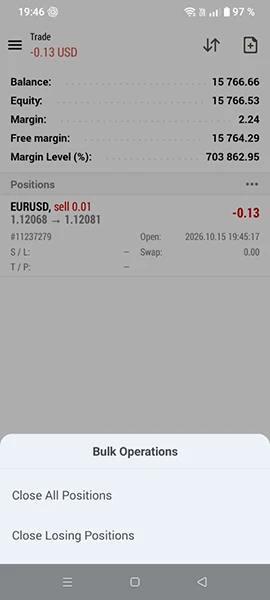
Open Trade and find the resulting position. Tap its row to expand the details.
Check the symbol, Buy/Sell direction, volume, opening price, and SL/TP levels. Trade also shows account information such as balance, equity, margin, and free margin.
Balance excludes the floating result of open positions, while equity reflects the account’s current value with relevant adjustments.
A newly opened position may initially show a loss because of the difference between buying and selling prices. NordFX explains this in how spread affects trading results.
Change Stop Loss or Take Profit
- In Trade, press and hold the position.
- Select Modify position.
- Enter the new Stop Loss or Take Profit.
- Tap Modify.
- Reopen the position details to check the accepted values.
Preserve the other level if you intend to change only one. The Modify button remains unavailable when the entered settings are invalid.
Accepted SL/TP levels are processed on the broker’s server, so they do not require the phone app to remain open. They do not guarantee an exact execution price.
Close a position manually
In Trade, press and hold the position and choose Close position.
Check the selected position and closing volume, then tap the closing button at the bottom. Keep the full remaining volume selected when you want a complete exit. If the request fails, read the message before retrying.
Confirm that the position no longer appears among open positions in Trade.
Use the existing position’s closing command. Opening a separate opposite order can create another position on a hedging account.
Review completed transactions in History
Open History and select the relevant date range. You can switch between Orders, Deals, and Positions.
Orders show trading instructions and their outcomes. Deals show executed transactions. Positions group the related activity.
Review the closing price, executed volume, and financial result. Check commissions and swaps where applicable; the profit figure alone may not represent the total result after costs.
Frequently Asked Questions
Why can I view prices but cannot trade?
Check that you logged in with the master password rather than the investor password. Also confirm the account connection and whether trading is available for that instrument.
Why is my instrument missing from Quotes?
Use the plus button to search for and add it. Available instruments depend on the connected account and server.
Why is the trading button inactive?
Check volume limits, the volume step, and stop-level distances in the instrument’s Properties. Invalid volume or stop settings can prevent submission.
Does closing the app close my trades?
No. Positions remain open until a closing transaction is executed, such as a manual close or an automatic exit. Reconnect and check Trade to see your current exposure.
Can I trade directly from the chart?
Yes. Android MT5 has a chart trading panel. With One Click Trading enabled, its Buy and Sell controls can send orders without an additional confirmation. Check the selected volume before using them.
Go Back Go Back