How do I open and close a trade in MT5 for Windows?
Short answer: To open a market trade in MT5, right-click an instrument in Market Watch, select New Order, enter the volume and any stop levels, then submit a Buy or Sell order. To close it, find the position in Toolbox → Trade, right-click it, and select Close Position, then confirm the closing operation if a dialog appears. Check that the position is no longer open and review its closing transaction in History.
Check your account and instrument
Make sure you are connected to the intended trading account. To reconnect, use File → Login to Trade Account and enter your account number, password, and server.
Use your master trading password. An investor password provides access to account information but does not allow trading.
Before choosing a trade size, right-click the instrument in Market Watch and select Specification. Review its contract size, minimum volume, volume step, and trading sessions. The same lot size can represent very different exposure across instruments.
Choose your volume according to the loss you are prepared to accept, rather than simply using the value already displayed. NordFX’s guide to position sizing and risk management explains this relationship.
Open a market trade
Open the order window
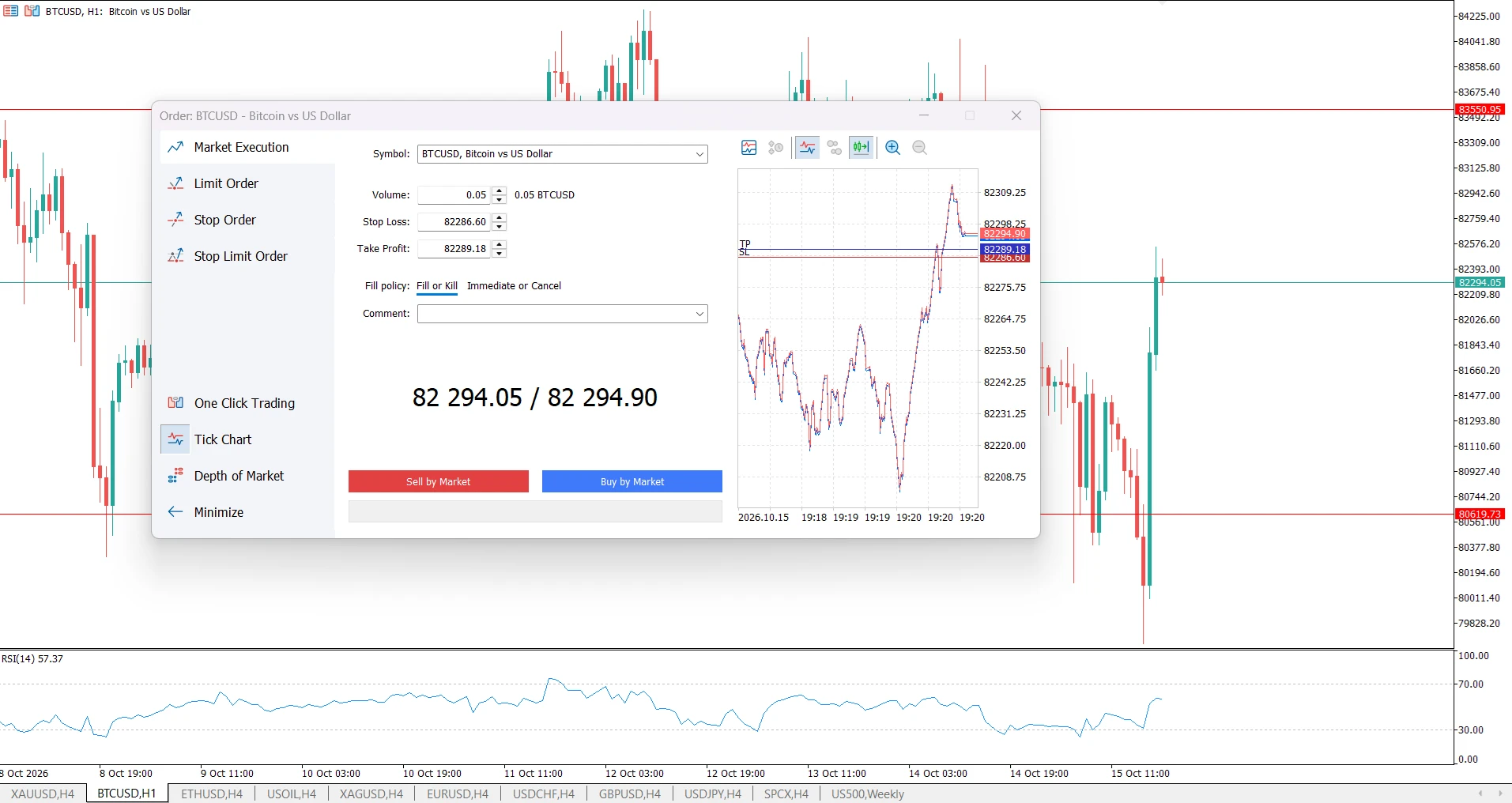
In Market Watch, right-click your chosen instrument and select New Order. Check the Symbol field before entering anything else.
This tutorial uses a market order to request an immediate transaction. Pending orders serve a different purpose: they wait for specified entry conditions. See MT5 order types if you need that distinction explained.
Enter volume and stop levels
- Check that Type shows an execution mode for an immediate trade, such as Market Execution, rather than Pending Order.
- Enter the intended trade size in Volume.
- Enter your planned Stop Loss and Take Profit.
- Review the symbol, volume, and stop settings before submitting.
Volume is expressed in lots in the order window. It is not the amount of money you are depositing or the amount you can lose.
Check how stop levels are being entered. Under Tools → Options → Trade, the Stop levels setting lets you choose prices or distances in points. For price-based entry, enter the actual market price you want to use, not a cash loss amount.
For a conventional Buy setup, the Stop Loss sits below the current market and the Take Profit above it; the relationship is reversed for a Sell setup. These levels must also meet the instrument’s permitted minimum distances. Stops help manage exits but do not guarantee an exact execution price.
Submit Buy or Sell
Choose Buy to open a long position or Sell to open a short position. Under Market Execution, the buttons are labelled Buy by Market and Sell by Market.
Click the intended button once, then check the execution result before sending another request.
Confirm that the position is open
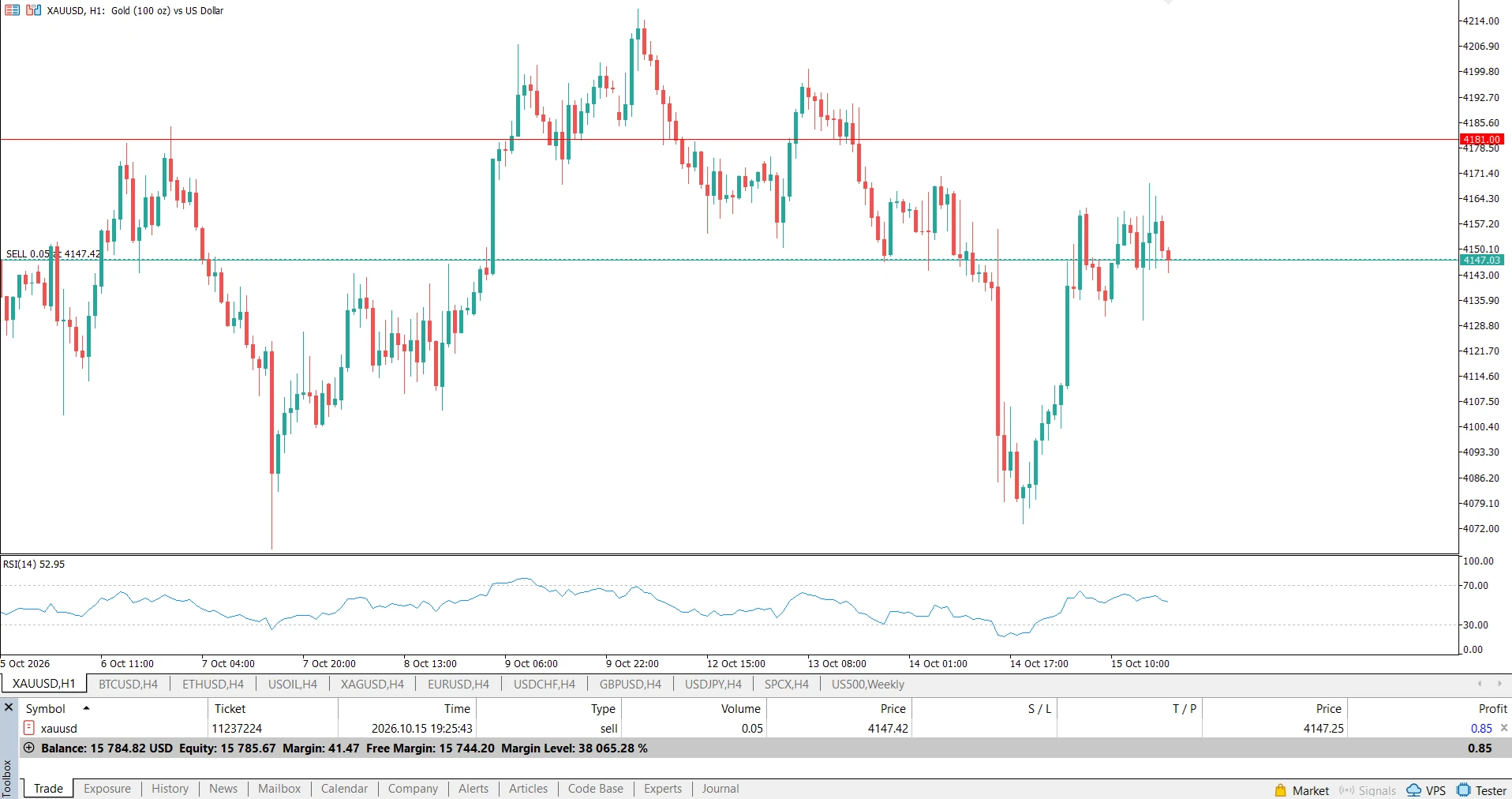
Open View → Toolbox, or press Ctrl+T, and select Trade.
Find the position and check its symbol, Buy/Sell direction, volume, opening price, and S/L and T/P values. Do not assume that clicking a trading button means execution succeeded.
A new position may show a floating loss because buying and selling use different prices. A Buy normally opens at Ask and closes at Bid; a Sell opens at Bid and closes at Ask. NordFX’s explanation of how spread affects trading results covers this initial difference.
Close the trade manually
Close the full position
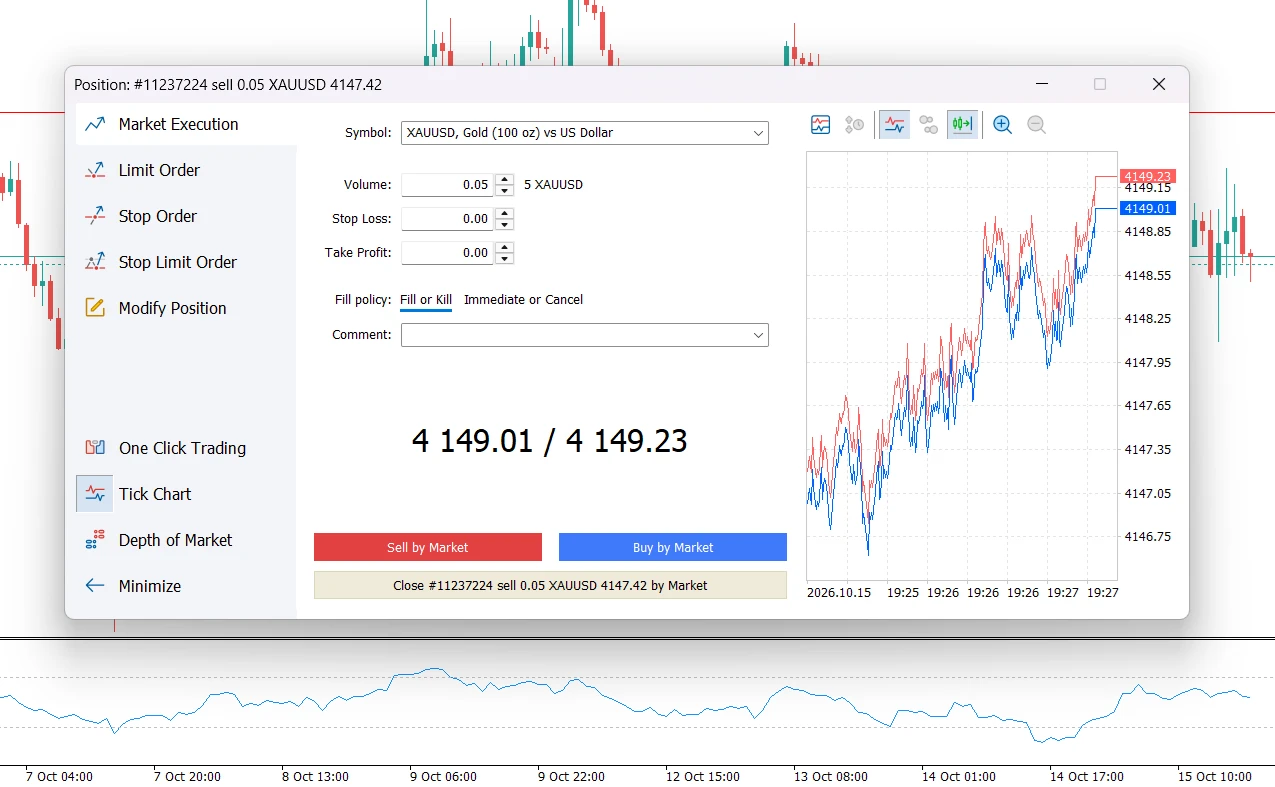
- In Toolbox → Trade, locate the position you want to close.
- Right-click it and select Close Position.
- If a closing dialog appears, check the symbol and leave Volume equal to the full remaining position.
- Click the Close button to submit the closing request.
With One Click Trading enabled, closing actions can execute without an additional confirmation dialog. To follow the dialog-based workflow, disable One Click Trading under Tools → Options → Trade first.
Confirm that the position has closed
Check that the position has disappeared from Trade. Then open History and review the closing transaction. If necessary, widen the history date range.
If volume remains open, the position has not been fully closed.
Avoid opening an opposite trade by mistake
Use Close Position on the existing position rather than opening a fresh order in the opposite direction.
On a hedging account, a new opposite order can create a separate position while leaving the original open. On a netting account, an opposite transaction can reduce, close, or reverse the existing position, depending on its volume. NordFX explains these differences in its guide to orders, deals, and positions in MT5.
Resolve common execution problems
The volume is rejected
Check Specification for the instrument’s minimum and maximum volume and its volume step. A permitted quantity for one instrument may be invalid for another.
MT5 reports invalid stops
Check both the direction of your stop levels and the permitted distance from current prices. Also confirm whether your fields expect prices or points.
A request does not execute
Read the platform message before retrying. Check your connection, trading access, available margin, and the instrument’s trading session. The Journal tab in Toolbox records trading operations and can help identify the reason for a failure.
Frequently Asked Questions
Does closing the chart close my trade?
No. Closing a chart window does not send a position-closing instruction. Manage the position through the Trade tab.
Can I close a position before it reaches Stop Loss or Take Profit?
Yes. You can request a manual close while trading is available for the instrument. You do not need to wait for either level.
Why did clicking the cross close my position immediately?
With One Click Trading enabled, the closing button in the position’s Profit column can submit the close without another confirmation. Check the selected row before using it.
Is cancelling a pending order the same as closing a trade?
No. Cancelling a pending order removes an instruction waiting for execution. Closing a position exits exposure that is already open.
Why is the final result different from the profit I saw before closing?
Prices can move while the closing request is processed. Spread and applicable commissions or overnight charges can also affect the overall result. Review the recorded executions and costs rather than relying on the earlier floating figure.
Go Back Go Back